 Orbinovo AI Service
ÓRDENES DE TRABAJO
Guía rápida
Da de alta un móvil de empresa, asigna la primera orden y cierra el parte firmado.
Para el encargado
- Entra como encargado. En el ordenador, abre Orbinovo AI Service y pulsa Entrar como encargado. Usa tu cuenta autorizada.
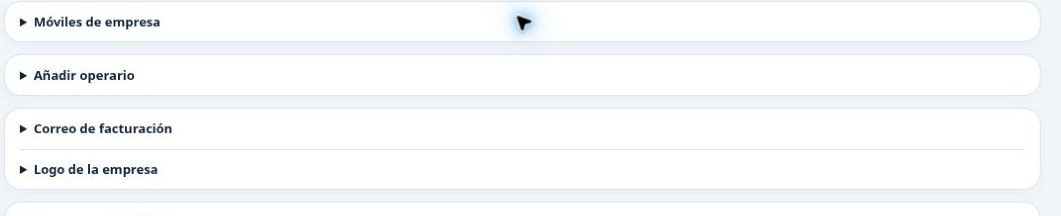
- Configura los partes. En Correo de facturación, guarda la dirección que recibirá los PDF. Si quieres incluir el logo de la empresa, sube un JPG o PNG de hasta 5 MB y pulsa Guardar logo.
- Prepara el móvil. Abre Móviles de empresa, escribe el nombre del operario y pulsa Crear operario y QR. Muestra el código al operario. Caduca en 15 minutos y se usa una sola vez.
- Asigna una orden. Pulsa Nueva orden, indica el trabajo, el cliente o la instalación y la dirección. Añade la referencia interna si tu empresa utiliza una, selecciona al operario y pulsa Crear y asignar.
- Revisa el parte. Abre la orden marcada Para revisar. Comprueba el trabajo y la firma y pulsa Aprobar y cerrar o Devolver para corregir.
Copia para facturación. Con el correo configurado, el PDF se envía cuando el operario cierra y envía el parte, antes de la aprobación. Puedes consultar el estado del envío en el detalle de la orden.
Para el operario
- Instala Orbinovo AI Service. En iPhone, abre la web en Safari y usa Compartir → Añadir a pantalla de inicio. Activa Abrir como app web si aparece. En Android, abre la web en Chrome y busca Añadir a pantalla de inicio o Instalar en el menú ⋮.
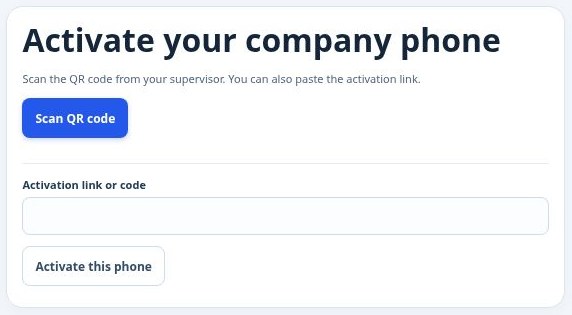
- Escanea el código. Abre Orbinovo AI Service desde su icono y pulsa Activar móvil → Escanear QR. Permite la cámara y apunta al código que te muestra el encargado. Si el QR falla, pide al encargado que pulse Copiar enlace y pega el enlace en Activar móvil. La activación del móvil funciona sin correo del operario ni cuenta de ChatGPT.
- Activa los avisos. En Avisos de órdenes en este móvil, pulsa Activar avisos y permite las notificaciones. Al tocar un aviso se abre esa orden.
- Inicia el trabajo. Al llegar, pulsa Iniciar trabajo. Si tienes una duda sobre el equipo, abre el asistente técnico en la orden. Puedes continuar la conversación con preguntas de seguimiento.
- Si queda trabajo pendiente, pausa la orden. Escribe o dicta lo realizado y deja indicado qué falta. El mismo operario puede reanudarla o el encargado puede reasignarla.
- Si la reparación está terminada, envía el parte. Registra el trabajo realizado por escrito o por voz y selecciona Reparación terminada. Completa las horas, el desplazamiento y los materiales. Recoge la firma del cliente si corresponde y pulsa Cerrar y enviar el parte.


Si algo falla
- El QR ha caducado o ya se usó
- El encargado puede pulsar Nuevo QR junto al operario. Si la cámara falla, puede facilitarle el enlace para pegarlo en Activar móvil.
- No llegan los avisos
- Abre la app desde su icono, comprueba que los avisos están activos y revisa el permiso de notificaciones del móvil.
- Hay que retirar el acceso
- En Móviles de empresa, pulsa Retirar acceso junto al operario y confirma. La sesión del móvil se desactiva.
WORK ORDERS
Quick start guide
Set up a company phone, assign the first work order, and submit the signed report.
For supervisors
- Sign in. On your computer, open Orbinovo AI Service and select Supervisor sign-in. Use your authorized account.
- Set up reports. Under Billing email, save the address that should receive the PDFs. To include your company logo, upload a JPG or PNG up to 5 MB and select Save logo.
- Set up the phone. Open Company phones, enter the technician’s name, and select Create technician and QR. Show the code to the technician. It expires in 15 minutes and can only be used once.
- Assign a work order. Select New work order, enter the job details, customer or site, and address. Add an internal reference if your company uses one, then choose a technician, and assign the order.
- Review the report. Open the work order awaiting review. Check the work and signature, then approve and close the order or return it for corrections.
Billing copy. Once a billing address is configured, the PDF is sent when the technician closes and submits the report, before approval. You can check its delivery status in the work order details.
For technicians
- Install Orbinovo AI Service. On iPhone, open the site in Safari and tap Share → Add to Home Screen. Turn on Open as Web App if shown. On Android, open the site in Chrome and look for Add to Home screen or Install in the ⋮ menu.
- Scan the code. Open Orbinovo AI Service from its icon and tap Activate phone → Scan QR code. Allow camera access and point the phone at the QR code. If scanning fails, ask your supervisor to select Copy link and paste the link into Activate phone. Technicians can activate a phone without an email address or a ChatGPT account.
- Turn on alerts. Under Work order alerts on this phone, tap Enable alerts and allow notifications. Tap an alert to open that work order.
- Start work. When you arrive, select Start work. If you have a question about the equipment, open the technical assistant in the order. You can ask follow-up questions in the same conversation.
- Pause the order if there’s work left. Type or dictate what you did and record what’s still pending. The assigned technician can resume the job, or the supervisor can reassign it.
- Submit the report when the repair is complete. Type or dictate the work you performed, then select Repair completed. Enter hours, travel, and materials. Capture the customer’s signature if applicable and select Close and send report.
Troubleshooting
- The QR code has expired or was already used
- The supervisor can select New QR next to the technician. If the camera doesn’t work, ask for the activation link and paste it into Activate phone.
- Alerts don’t arrive
- Open the app from its icon, check that alerts are enabled, and verify notification permissions on the phone.
- A phone’s access needs to be removed
- Under Company phones, select Revoke access next to the technician and confirm. The phone’s session is deactivated.